How to connect your Flickr account with Facebook Twitter and Blog
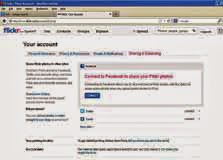
The pictures that you upload to Flickr can be simultaneously shared on your Facebook wall. To do so, log in to Flickr and click on ‘Settings’. Here, click the ‘Sharing and Extending’ tab. You will see options to connect your Flickr account and post pictures directly to Facebook, Twitter and blogs. Click on the ‘Connect’ option next to the Facebook icon. You will now have the option to share individual Flickr photos and even an option to share photos automatically on Facebook,in this way, you can connect your Twitter and Blogger account on Flickr.
When you click on 'Connect', you will have to allow Flickr to have access to your Facebook account. Thereafter you will see several options and settings;read and activate the ones you feel are necessary. Click on ‘Continue’ and it will take you back to Flickr options. You can opt for every photo uploaded on Flickr to be shared on Facebook or select manually which images should be posted on Facebook. If you choose the second option, you will have to go to the image that you wish to upload on Facebook and click on the ‘Share with others’ option,and click on ‘Facebook’. You can add a note before sharing your pictures on Facebook.